
Here’s a nice surprise for anyone with a Lenovo ThinkPad Yoga, or anyone thinking about one. The stylus pen isn’t loose in the box or rattling around the bottom of your bag. It’s tucked away inside the laptop itself. Lenovo calls this a garaged pen, and once you know where to look, you’ll never go hunting for it again. This guide shows you where to find your Lenovo stylus pen, how to get it out and charge it, and the everyday jobs it makes easier. The photos are of a renewed ThinkPad X1 Yoga Gen 5, taken in our workshop.
What is a garaged stylus pen?
A garaged pen is a stylus that docks inside the laptop, in a slot built into the case. It’s stored there, it travels there, and on ThinkPad Yoga models it recharges there too. Lenovo’s own spec sheet for the X1 Yoga Gen 5 describes its ThinkPad Pen Pro as on-board garaged and rechargeable, with 4,096 levels of pressure sensitivity. In plain English, a light touch draws a fine line and a firmer press draws a bolder one, much like a real pen or pencil on paper.
The pen is slimmer than a ballpoint so it can hide inside the laptop, but it’s a proper active pen with a fine tip and two buttons on the barrel. It’s made for the touchscreen on the laptop it lives in, so there’s nothing to pair and nothing to set up.
Where to find the pen on your Lenovo ThinkPad Yoga
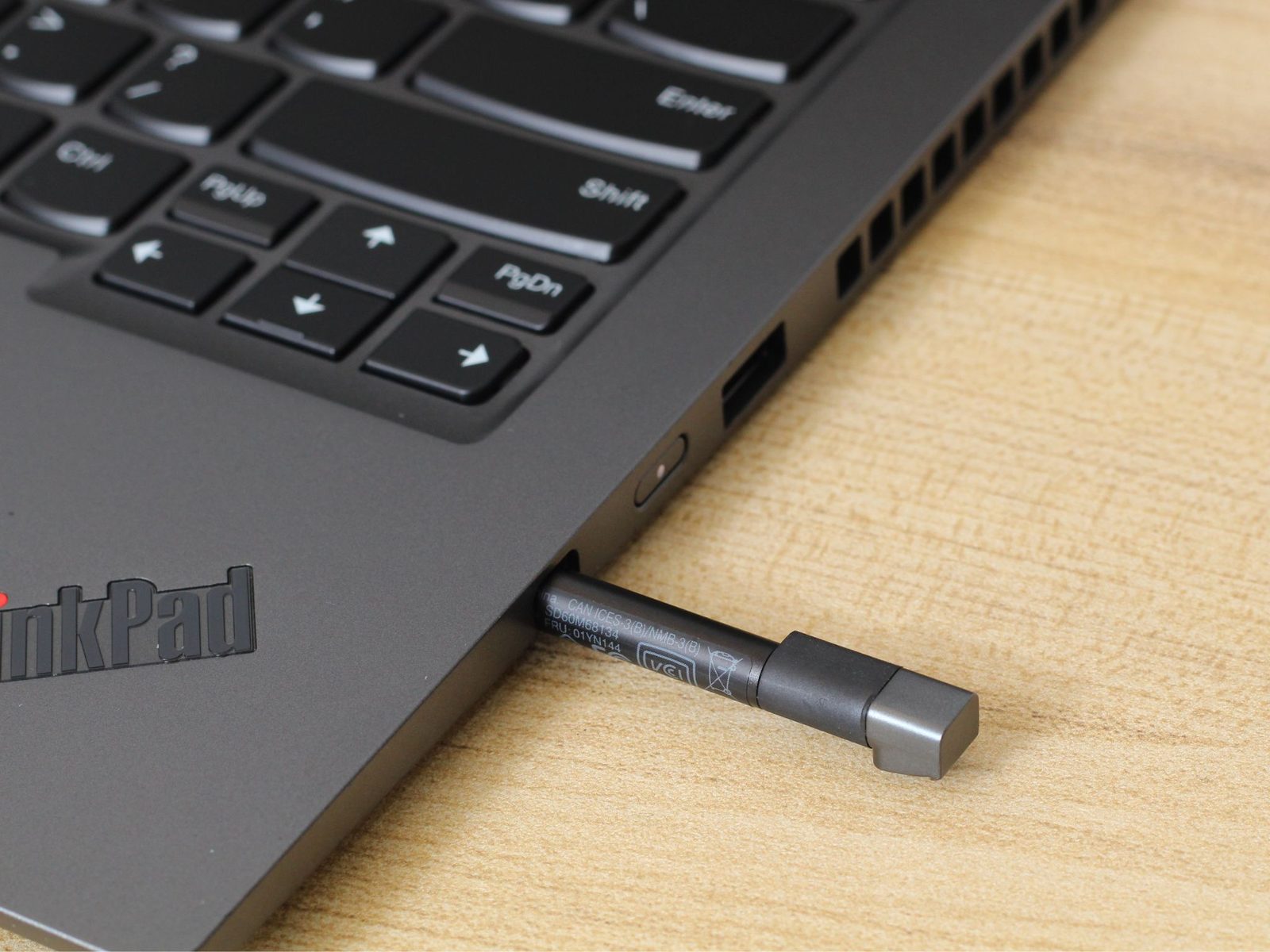
The pen half out of its garage on a ThinkPad X1 Yoga Gen 5, just past the power button.
On the X1 Yoga Gen 5 in our photos, the pen slot sits on the right-hand edge of the keyboard half, near the front corner and just past the power button. With the pen docked, all you can see is its flat end cap, sitting flush with the edge. It’s easy to mistake for a port or a bit of trim. Other ThinkPad Yoga models put the slot in a similar spot on one of the side edges, so run your eye along both sides of the base and look for that small cap.
Still can’t see it? Check the listing or the original spec. Some Yogas were ordered without a pen in the first place, and a pen doesn’t always stay with the laptop when a business lease ends. On some models Lenovo fits a blank filler where no pen was ordered, which it calls a pen dummy. A filler stays put, so a cap that won’t slide out may not be a pen at all. When a pen comes with one of our machines, the listing’s specs say so, like the Stylus Pen Included line on the X1 Yoga in these photos. That way you know exactly what’s in the box before you buy.
Where the pen hides on an Acer Spin and other brands
It isn’t only Lenovo. Many Acer Spin 3 and Spin 5 models keep their pen in a bay on the right-hand side, where it charges while it’s stored. On models sold without one, Acer fits a dummy pen in that bay. Other brands tuck theirs into the same kind of slot on the edge of the keyboard half, so whatever the brand, the hunt is the same.
How to take the Lenovo stylus pen out and put it back
There’s no button to press and no catch to release. Lenovo’s own instructions for the X1 Yoga Gen 5 are to slide the pen out of the slot, and that’s all there is to it.
- Find the end cap on the side edge of the keyboard half.
- Catch the cap with a fingertip or fingernail and slide the pen straight out. It should glide out easily, so never lever it with anything sharp.
- Put it back tip first and slide it in until the end cap sits flush with the edge again.
- Park it whenever you’ve finished. The slot is where it charges, and it’s the one place it can’t go missing.
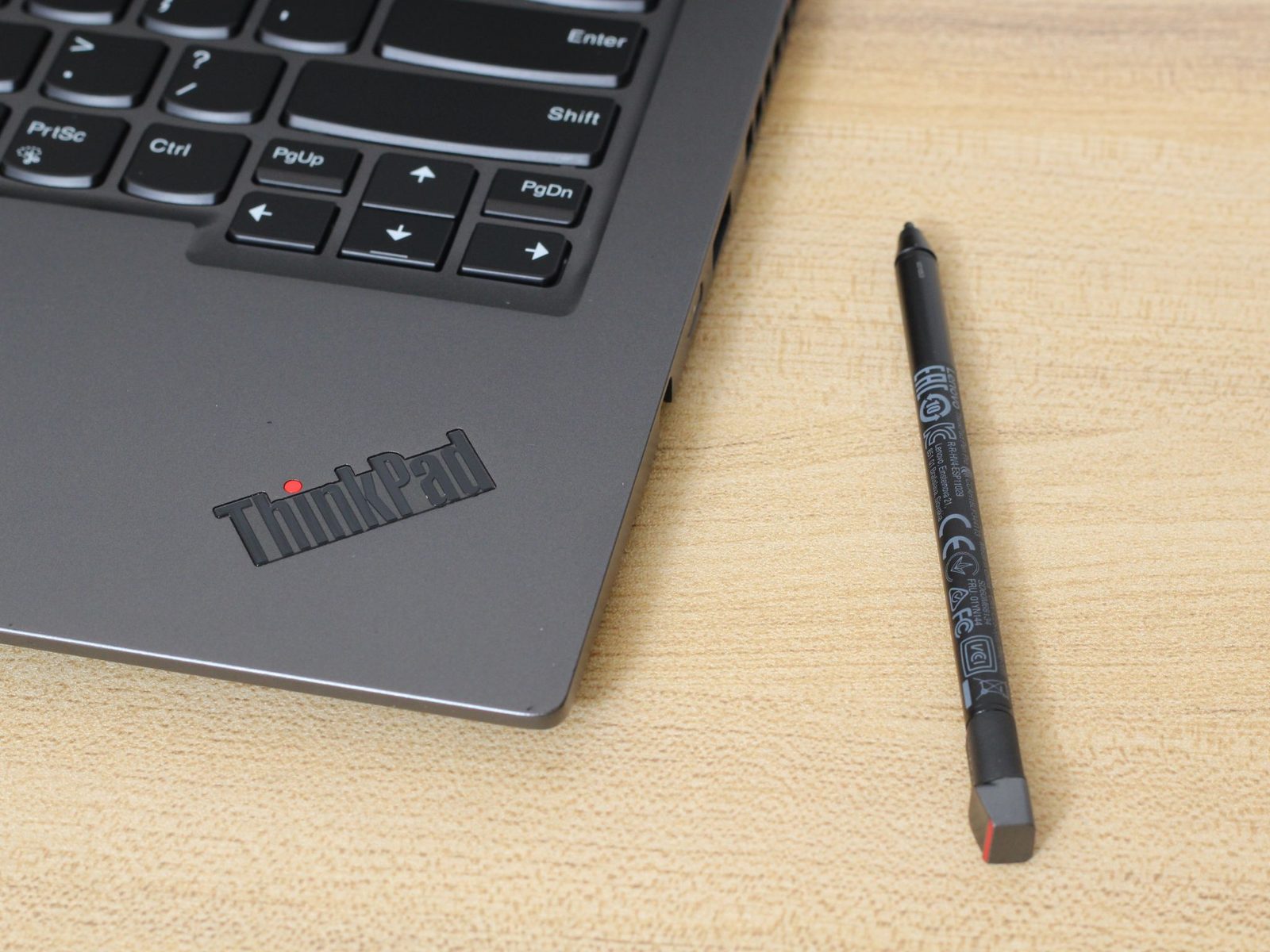
Out of the garage, the ThinkPad Pen Pro is slim, light and ready to write.
How to charge your Lenovo pen
You won’t need a cable or a spare battery. Make sure the laptop is on or asleep, then slide the pen back into its slot. According to Lenovo’s user guide for the X1 Yoga Gen 5, the pen is 80% charged in about 15 seconds and fully charged in about five minutes. So a pen that goes back in its garage between uses is ready to go almost every time you reach for it.
Why a pen that lives in your laptop is so handy
Anyone who has owned a separate stylus knows how the story goes. It ends up in a drawer, a pencil case or down the side of the couch, and when you finally find it, it’s flat. A garaged pen fixes both problems at once, because the only place to put it away is the one place it charges.
What can you use a stylus pen for?
More than most people expect. Once the pen is out, it quickly becomes the easiest way to do a whole list of everyday jobs, and none of them need special software.
- Handwritten notes. Jot down notes in meetings, lectures or on a phone call with the free OneNote app, and keep them all in one place.
- Signing documents. Open a PDF in Microsoft Edge, choose Draw and sign it by hand, with no printer or scanner in sight.
- Marking up work. Circle, underline and comment on PDFs, drafts and screenshots. The Windows Snipping Tool lets you draw straight onto a screenshot before you send it.
- Sketching and diagrams. Pressure sensitivity makes quick sketches, floor plans and mind maps feel natural in free apps like Microsoft Whiteboard.
- Study and maths. Students can write out equations, draw diagrams and annotate lecture slides much faster than typing them.
- Precise tapping. A pen tip is far more accurate than a finger on small buttons, spreadsheet cells and photo edits.
Using it is second nature. Tap the screen once to click, tap twice to double-click, and touch and hold for about a second to right-click. The two buttons on the barrel are an eraser button and a click button by default, and some apps give them their own jobs.
Tent mode and the pen make a great pair
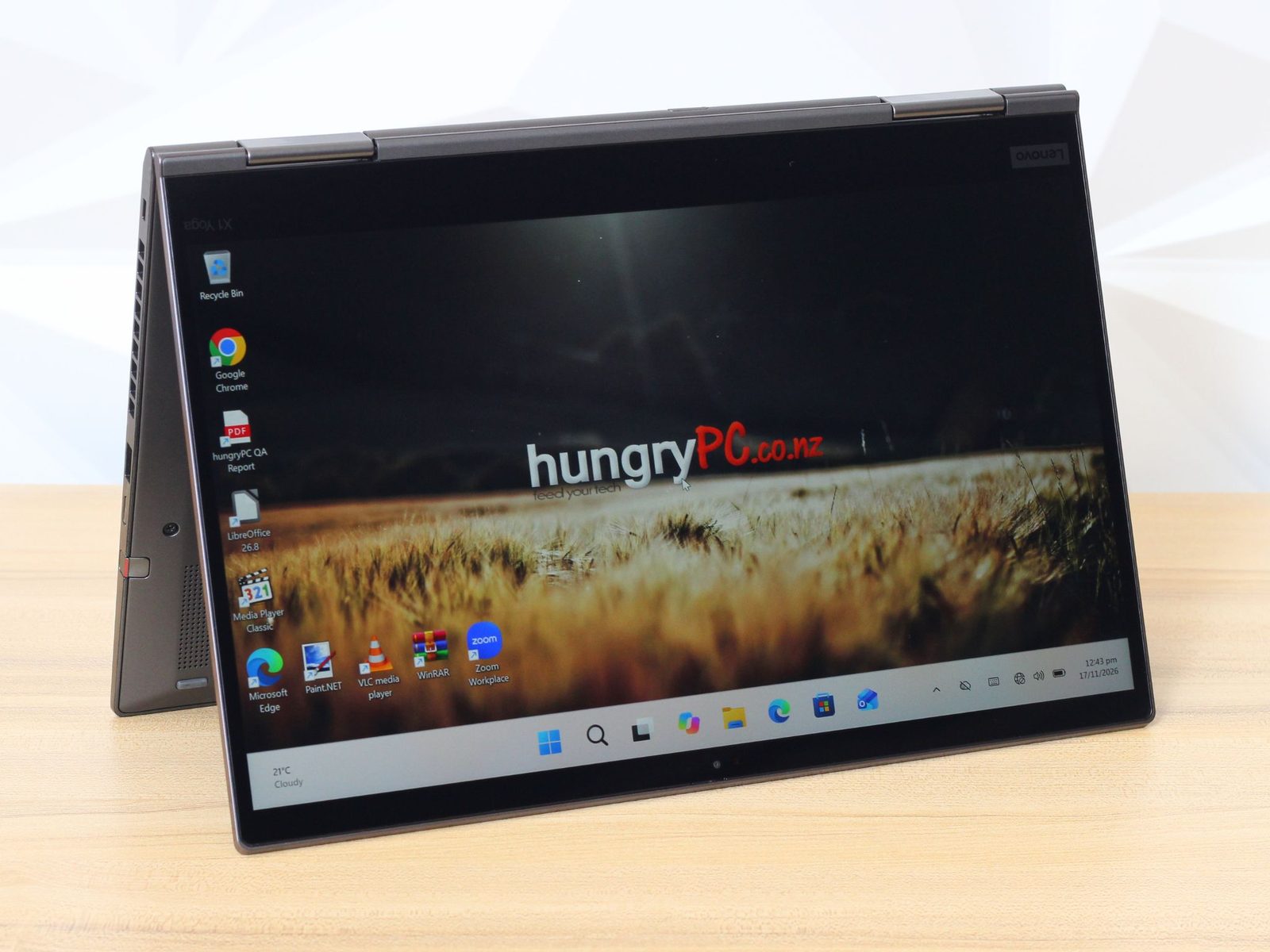
The same X1 Yoga in tent mode, keyboard tucked away underneath.
The X1 Yoga’s 360-degree hinge folds the screen all the way round, and Lenovo lists four ways to use it, as a laptop or in tent, stand or tablet mode. Tent mode is the one people tend to fall in love with. Stand it up like a little A-frame and the keyboard tucks out of the way underneath. It’s ideal for showing a client a quote across the table, following a recipe in the kitchen or watching a show on a tray table. Reach over with the pen to sign, scroll or circle something on screen, and the wide base keeps everything steady.
When you want to write or draw for longer, fold it right back into a tablet and rest it on your lap or the desk. It feels a lot like writing on a notepad, with your whole computer behind it. Torn between a 13-inch and a 14-inch convertible? Our guide on what size laptop is best walks through how screen sizes compare.
Which laptops have a built-in pen?
Lenovo’s ThinkPad Yoga range is where you’ll find it most often. Many generations of the ThinkPad X1 Yoga have one. So do models like the X13 Yoga, L13 Yoga and X380 Yoga, along with older favourites such as the ThinkPad Yoga 260 and 370. If you like the sound of one, browse our touchscreen laptops or our refurbished Lenovo laptops, and check the specs for the pen.
Outside Lenovo, you’ll find the same idea on many Acer Spin 3 and Spin 5 models, as well as some Acer Chromebook Spin models. Samsung’s Notebook 9 Pro slides its S Pen into a slot under the keyboard, and some Dell Inspiron 2-in-1s park the pen in a magnetic hollow in the hinge. Plenty of great touchscreen laptops have no garage at all, though. Many HP EliteBook x360 and Dell Latitude 2-in-1 models work with a separate active pen instead. The listing’s specs are always the place to check what comes in the box.
A pen-ready 2-in-1 for less than new
Convertibles like the X1 Yoga were premium business machines when they were new, built to higher standards than consumer models. The Gen 5 pairs an aluminium lid with a magnesium base. That build quality is exactly why they’re such good value the second time around. Our ex-lease ThinkPad Yogas and other refurbished laptops are renewed and upgraded in our NZ workshop. Each one is tested for 48 hours, and your printed Test Report is in the box. You also get a 1-Year Warranty, extendable up to 36 months and free shipping nationwide, with interest free payment options available from Afterpay and Klarna.
Our touchscreen laptops and 2-in-1s are tested for 48 hours and come with a 1-Year Warranty and free shipping nationwide.
Shop touchscreen laptopsFrequently asked questions
Where is the pen on a Lenovo ThinkPad Yoga?
It’s in a slot built into the side edge of the keyboard half. On the X1 Yoga Gen 5 it’s on the right-hand side near the front corner, just past the power button. Look for the pen’s flat end cap sitting neatly in the edge.
Does the ThinkPad X1 Yoga come with a pen?
Many generations were made with a pen built into the side, so it goes wherever the laptop goes. When one of ours includes the pen, the listing’s specs say Stylus Pen Included.
Where is the pen on an Acer Spin laptop?
On many Spin 3 and Spin 5 models it sits in a bay on the right-hand side, where it charges while it’s stored. Models sold without a pen have a dummy pen in that bay instead.
How do I charge my Lenovo stylus pen?
Slide it back into its slot while the laptop is on or asleep. Lenovo says the X1 Yoga Gen 5 pen is 80% charged in about 15 seconds and fully charged in about five minutes, with no cable needed.
Why is my Lenovo pen not working?
Most of the time it needs a quick charge. Park it in its slot for a few seconds with the laptop switched on, then tap the tip on the screen to wake it. The Lenovo Pen Settings app shows its battery level.
Does every touchscreen laptop come with a pen?
No. Built-in pen garages are mostly found on Lenovo ThinkPad Yoga models and some Acer Spin models, and many other 2-in-1s use a separate pen. When one of our touchscreen and 2-in-1 laptops comes with a pen, its listing’s specs say so.
Can I use the pen in normal laptop mode?
Yes. The pen works on the touchscreen in every mode, whether the laptop is open as normal, standing in tent mode or folded flat as a tablet.
Is the Lenovo stylus pen waterproof?
No. Lenovo advises keeping the pen away from water and moisture, so its garage is the best place for it whenever it’s not in your hand.