
It can be a bit unsettling when your desktop computer won’t power on, but don’t fret! More often than not, it’s a straightforward issue you can easily resolve yourself. We usually find that most startup issues are quickly fixed with a few easy troubleshooting steps. This guide is designed to help you get your desktop back up and running smoothly.
Has Anything Changed Recently?
Before we dive into troubleshooting steps, take a moment to consider if anything new has been installed or changed on your Desktop PC before the issue began. A recent software update, a new peripheral, or even a power fluctuation can sometimes cause a temporary glitch. Often, a complete power reset is all it takes to clear things up and get your system booting normally again.
First Step: Power Drain, Restart.
This is often the most effective solution for a PC that’s being a bit stubborn. It helps to completely reset the system and clear any lingering glitches. Keep note of any flashing lights, fan noises, or messages on the screen that may help troubleshoot your issue further.

Here’s how to do it:
Disconnect Everything: Turn off your computer and unplug every single cable from the back and front of your PC. This includes the main power cable, monitor cables, keyboard, mouse, speakers, any USB devices (like external hard drives or webcams), and network cables.
Press and Hold the Power Button for 60 seconds: With everything disconnected, press and hold your desktop’s power button for a full 60 seconds. This drains any residual power from the internal components, ensuring a complete reset.
Release and Wait: Release the power button and wait for about 5 minutes. This allows all internal capacitors to fully discharge.
Reconnect Essentials Only: Now, plug in only the absolute essentials and see if you can start your PC. We recommend only connecting the following initially.
- The main power cable for your PC.
- Your monitor cable(s).
- Your keyboard and mouse.
Attempt to Start: Press the power button normally to turn on your desktop, and wait, paying close attention to any activity, lights, noises or messages.
Patience is a Virtue, Especially After Updates!
A crucial tip to remember: When your PC is starting up, especially after a recent update or sudden shutdown, it’s perfectly normal for the machine to turn on and off repeatedly while it completes its processes. Never interrupt this process! Give your PC a good few minutes to complete its procedures before attempting to press the power button again. This ensures that all updates are installed correctly and your system is stable.
Check Your Power and Connections
Often, a PC that won’t turn on is simply suffering from a loose connection, or may be connected to a monitor that is not showing the display. Let’s make sure everything is connected properly and run a process of elimination to determine the cause.
Try a Different Power Socket: Plug your PC’s power cable into a different wall socket in your home or office. This helps rule out an issue with the power point itself.
Inspect the Power Cable: Ensure that the power cable going into the back of your PC (and into the wall) is firmly seated. Sometimes, a loose connection here is all it takes.
Power Supply Switch: Most desktop power supplies have a physical on/off switch on the back, usually marked with a “0” and “1” or “O” and “I”. Make sure this switch is set to the “on” or “I” position. If you see a recessed selector switch (often coloured red) that has 110/240 Voltages on it DO NOT ATTEMPT TO CHANGE THIS.
Listen for Sounds: When you press the power button, listen carefully. Do you hear the fans spin up? Do you hear any beeps? Do you hear your Operating System’s Startup Sounds? Even if the screen is black, hearing the computer come to life internally is a good sign that the power supply and motherboard are receiving power, and potentially you’re just dealing with the issue of your screen not showing the display.
Is the PC On, But the Screen is Black?
Sometimes, your desktop PC might actually be powered on and running, but you can’t see anything on the monitor. This is a very common scenario!
Check Monitor Power and Input: Ensure your monitor is plugged into a working power outlet and is turned on.
Check the monitor’s input settings: These are usually accessible via buttons on the monitor itself, make sure it’s set to the correct input that your PC is connected to (e.g HDMI, DisplayPort, DVI, VGA) .
Graphics Card Connection: This is especially important for gaming PCs or CAD workstations with dedicated graphics cards. Ensure your monitor cable is plugged into the graphics card ports on the back of your PC, not the ports directly on the motherboard (which are often higher up or arranged differently). Plugging into the motherboard ports when a dedicated graphics card is installed will usually result in a black screen.
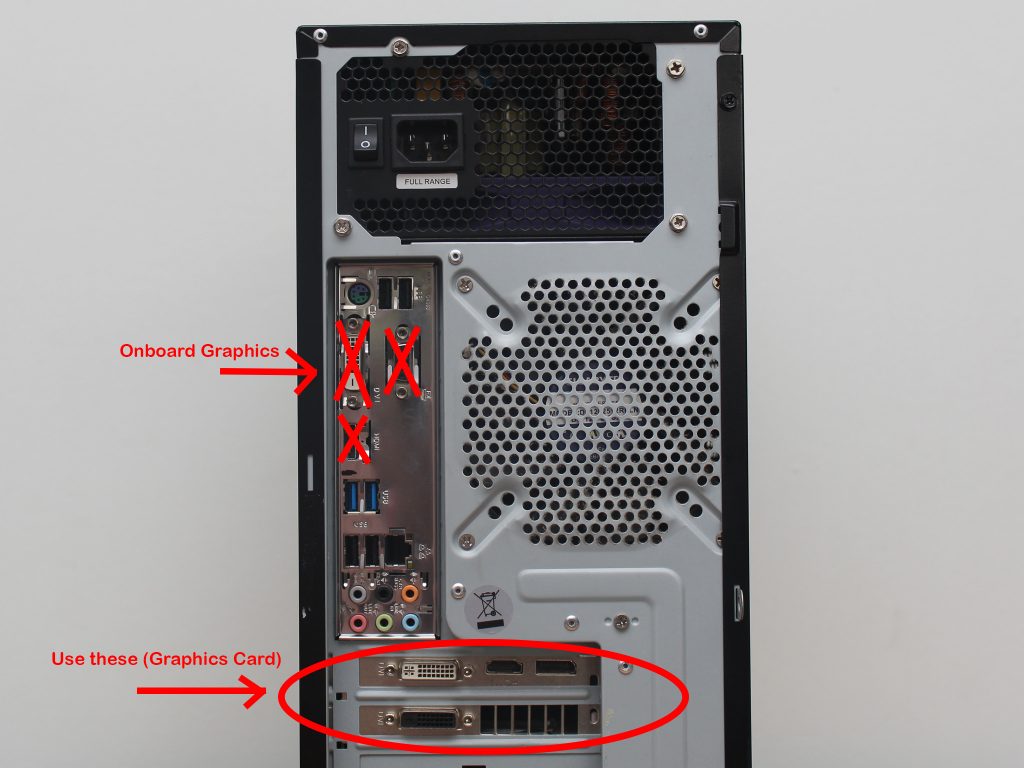
Try Different Monitor Ports: If your graphics card has multiple ports (e.g several HDMI or DisplayPort connections), try plugging your monitor into a different port on the graphics card.
Try Another Monitor/Cable: If you have access to another monitor, TV and/or another cable, try swapping them out. This helps determine if the issue is with your original monitor or cable.
Key Takeaways to Get Your PC Up and Running
- Full Power Drain: Unplug everything, hold the power button for 60 seconds, wait 5 minutes, then reconnect only the essentials.
- Check Power, Switches and Connections: Ensure all cables are firmly connected and the PSU switch is on.
- Listen for Signs of Life: Fans, beeps, startup sounds, these all tell you what the PC is doing.
- Check Your Monitor, and try another Display: Is it switched on? Is it on the right input? Is it plugged into the graphics card? Try a TV or another Display just in case!
- Be Patient: Let your PC complete its startup cycles, especially after updates or a sudden shutdown.
We trust these steps have helped get your PC back up and running smoothly! If you’ve diligently followed all the troubleshooting steps outlined in this guide and your machine is still not turning on, your device may require further technical diagnostics by a technician.
If you need further assistance, please don’t hesitate to reach out to our friendly support team on our contact page and we can help get you up and running in no time.