
Seeing a sudden “Your PC is infected” warning pop up on your screen is terrifying. You might instantly think you need to throw the whole machine away or pay for expensive repairs. Nine times out of ten, you do not actually have a virus, and you certainly don’t need to pay an expensive technician for a fix. You probably just accidentally clicked “Allow” on a website asking to send you notifications. Those scam websites then spam your screen with fake alerts hoping you will panic, click them, and buy fake security or clean-up / driver update software.
Fixing this is incredibly simple and takes less than two minutes. This is an extremely common issue that people face, and you do not need to be a tech expert to solve it. Here is the step-by-step guide to silencing those annoying alerts and getting your browser back to normal.
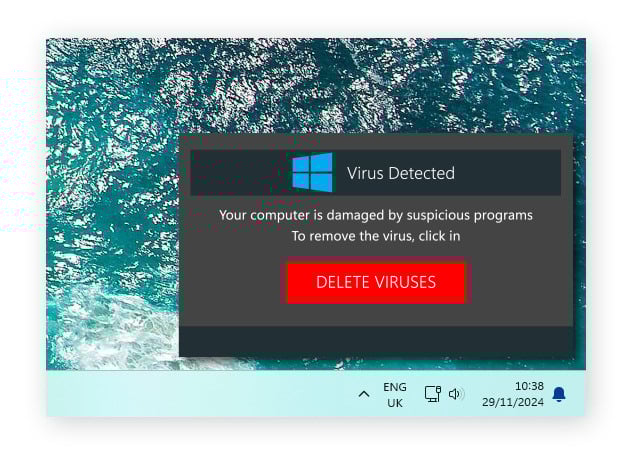
How to Block Fake Virus Notifications in Google Chrome
The easiest way to fix the problem is to revoke the shady website’s permission to send you messages.
- Open Google Chrome on your computer.
- Click the three vertical dots in the top right corner of the browser window.
- Click on Settings from the drop-down menu.
- Select Privacy and security from the left-hand menu.
- Click on Site settings and then scroll down to click on Notifications.
- Scroll down to the “Allowed to send notifications” section.
- Look for any suspicious website addresses you do not recognize.
- Click the three vertical dots next to the bad website and select Remove.
Remove Unwanted Chrome Extensions
If the pop-ups keep happening after you clear your notifications, a rogue browser extension might be the culprit.
- Click the three vertical dots in the top right corner of Chrome.
- Hover over Extensions and click Manage Extensions.
- Look for anything you did not intentionally install.
- Click Remove on any suspicious extensions.
Reset Chrome to Default Settings
Sometimes a browser is too cluttered with junk to fix one piece at a time. If removing notifications and extensions does not stop the fake virus warnings, resetting Chrome completely is your best bet. This clears out temporary data, disables all extensions, and resets your homepage. Do not worry, your saved bookmarks and passwords will stay safe.
- Click the three vertical dots in the top right corner of Chrome.
- Select Settings.
- Click on Reset settings in the left-hand menu.
- Click Restore settings to their original defaults.
- Confirm by clicking the Reset settings button.
Is Your Current PC Struggling to Keep Up?
Dealing with browser pop-ups is frustrating enough. It is even worse when those pop-ups completely freeze an older, slow computer. If your current machine struggles just to open web pages or manage everyday tasks, a simple hardware upgrade makes a world of difference, and gives you a fresh start. Often replacing your old computer with our affordable renewed options is much cheaper, and more effective than paying a technician hundreds of dollars to fix and upgrade a slow, out of date machine.
For everyday browsing and office work, our range of reliable Laptops provide the perfect mix of speed and portability. A fantastic option for working on the go is a business-grade HP, Dell or Lenovo. These are lightweight and equipped with powerful processors, which deliver snappy everyday performance letting you run multiple applications without lag. The rigid chassis of business grade hardware protects the internal components from daily bumps and knocks, ensuring a much longer lifespan than flimsy plastic consumer models.
If you are on a strict budget, our selection of Cheap Laptops gives you access to premium ex-lease hardware without the heavy retail price tag. Every unit comes standard with a high-speed Solid State Drive, meaning the machine boots up in seconds and opens applications the moment you click them.
Prefer to keep your work anchored to a desk? A dedicated tower or Desktop offers excellent thermal cooling, letting you crunch heavy data or make room for further expansion and upgrades such as dedicated graphics cards. You can complete the ultimate home office setup by browsing our Accessories for dual monitors, ergonomic keyboards, and docking stations to make your daily workflow incredibly comfortable.